Seamless Power BI Integration with SharePoint/OneDrive – No More Publish, No Paid License
 By Inkey Solutions
November 14, 2025
5 min read
By Inkey Solutions
November 14, 2025
5 min read
A revolutionary new workflow that saves time, money, and eliminates manual publishing—even for free users!
Breaking Down the New Power BI Integration
If you’re a Power BI user tired of the repetitive publish-save-republish cycle, there’s fantastic news. Microsoft has introduced a game-changing preview feature that directly connects Power BI Desktop with SharePoint Online and OneDrive for Business, allowing automatic updates without manual publishing. Even better? This feature is available to Power BI Free users—no paid license required!
The Old Workflow vs. The New Reality
Traditional Workflow:
- Develop report in Power BI Desktop
- Save .pbix file locally
- Manually publish to Power BI Service
- Repeat steps 1-3 for every update
New Streamlined Workflow:
- Save .pbix directly to SharePoint/OneDrive
- Import once to Power BI workspace
- Set up refresh to auto-sync updates from OneDrive from Tenant settings.
- Enable OneDrive refresh settings to keep data updated from OneDrive.
- Turn on Automatic updates to detect changes saved in OneDrive.
- Just save changes in Desktop—automatic updates occur.
Why This Integration Is Revolutionary
Limitation with Traditional Power BI Workflow
- Limited Collaboration Unless Using Pro or PPU Workspaces: Collaboration requires Pro or PPU licenses to publish to shared workspaces. Free users can’t contribute to or view shared content directly, and shared files don’t reflect real-time updates—leading to version mismatches.
- Manual Publishing Required After Every Change: Any updates to a .pbix file require manual publishing to the Power BI Service. This slows down the process and risks outdated reports if the latest version isn’t published.
Here’s how the OneDrive and SharePoint integration overcomes these barriers:
1. Automatic Updates Without Manual Publishing
Once your .pbix file is saved in OneDrive or SharePoint and imported into Power BI Service, the system automatically refreshes your report when file changes are detected. Simply save your work in Power BI Desktop, and the service handles the rest—no more clicking “Publish” repeatedly!
2. Enhanced Collaboration via Cloud Storage
Storing reports in SharePoint Online provides centralized access with proper version control. While Free users have limitations on direct sharing within Power BI Service, team members can access the same .pbix file via SharePoint and either:
- Import it into their individual workspaces for personal viewing
3. Free License Support for Personal Use
This integration is fully available to users with a Power BI Free license when reports are used for personal dashboards or internal team use. This makes professional BI capabilities accessible without the cost barrier of Pro or Premium Per User (PPU) licenses.
Setting Up Your Seamless Workflow
1. Enable Preview Features in Power BI Desktop
First, you’ll need to activate the integration features:
- Open Power BI Desktop
- Navigate to File > Options and settings > Options
- Select the Preview features tab
- Check boxes for:
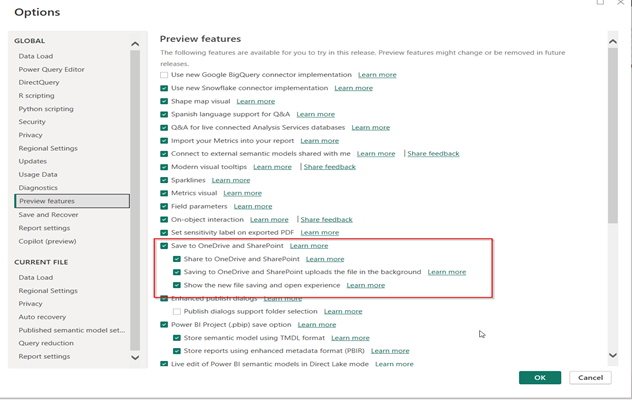
- Click OK and restart if prompted
2. Create a SharePoint Library for Collaboration
For team environments:
- Navigate to your SharePoint site
- Create a document library

- Verify you have permissions to add and edit files
3. Add Team Members to the SharePoint Library
To enable collaborative editing:
- From your SharePoint library, click the Share button
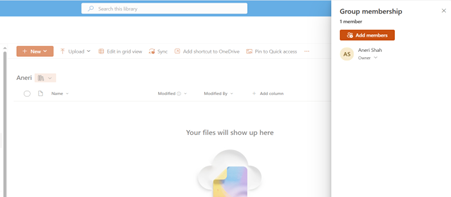
- Add team members’ email addresses
- Set their permissions to Edit
- Optionally notify them via email
Best Practice: Consider designating a primary editor to avoid version conflicts.
4. Save Your Report to OneDrive or SharePoint
Now you can save directly to the cloud:
- Open your report in Power BI Desktop
- Go to File > Save As
- Select OneDrive or SharePoint from the left pane
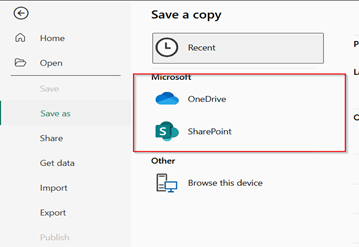
- Navigate to your SharePoint library
- Save the file as a .pbix file
5. Import to Power BI Service
Next, create the connection in Power BI Service:
- Access app.powerbi.com
- Navigate to your workspace
- Click import
- Select OneDrive or SharePoint as the source
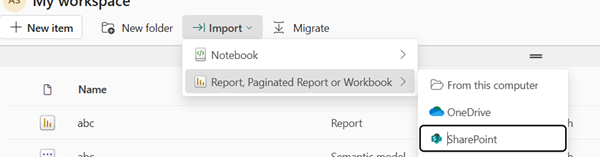
- Locate and select your .pbix file
- Click Import.
6. Configure Automatic Refresh
Once the file is imported, enable the refresh behavior to suit your needs.
Power BI offers three options under the Sync with OneDrive and SharePoint settings, In this context, we will focus only on the Automatic updates option:
To access this screen:
- Open the dataset settings in Power BI Service
- Scroll to the “Sync with OneDrive and SharePoint” section
- Choose Automatic updates to ensure real-time syncing: Updates are automatically applied whenever changes are saved in OneDrive or SharePoint. Ideal for real-time workflows.
Important: If the tenant setting Semantic model owners can choose to automatically update semantic models from files imported from OneDrive or SharePoint is disabled by the admin, the automatic update option will not be available, and you’ll see a message indicating restricted updates.
To enable this option, go to:
Settings → Admin Portal → Tenant Settings, and look for:
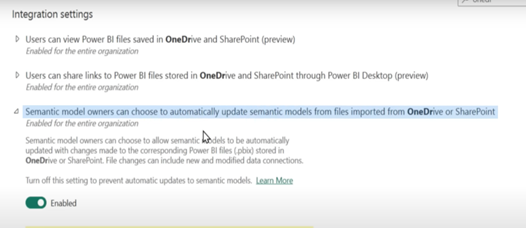
Make sure this is turned On to allow automatic syncing from OneDrive and SharePoint.
Major Advantages of the Integration
- Eliminates reliance on Pro licenses or shared workspaces, enabling broader access.
- Facilitates cost-effective collaboration across teams.
- Allows teams to save .pbix files directly to shared OneDrive or SharePoint folders.
- Supports automatic report updates after configuring refresh settings.
- Ensures all team members have access to the latest version without manual uploads or sharing.
Conclusion:
- Streamlined Workflow: Power BI integration with OneDrive/SharePoint eliminates the need for manual publishing.
- Automatic Updates: Simply saving a report in Power BI Desktop updates it automatically in the Power BI Service.
- Free License Support: Enables individuals and small teams with Power BI Free licenses to maintain up-to-date reports without extra costs.
- Improved Collaboration: Enhances report sharing and teamwork by syncing changes instantly.
Have you tried this new integration? Share your experience in the comments section below!